Setting Up Your AWS Account
Prerequisites
Follow these steps to set up your Amazon Web Services (AWS) account for deploying applications with Defang.
Step 1: Create Your AWS Account
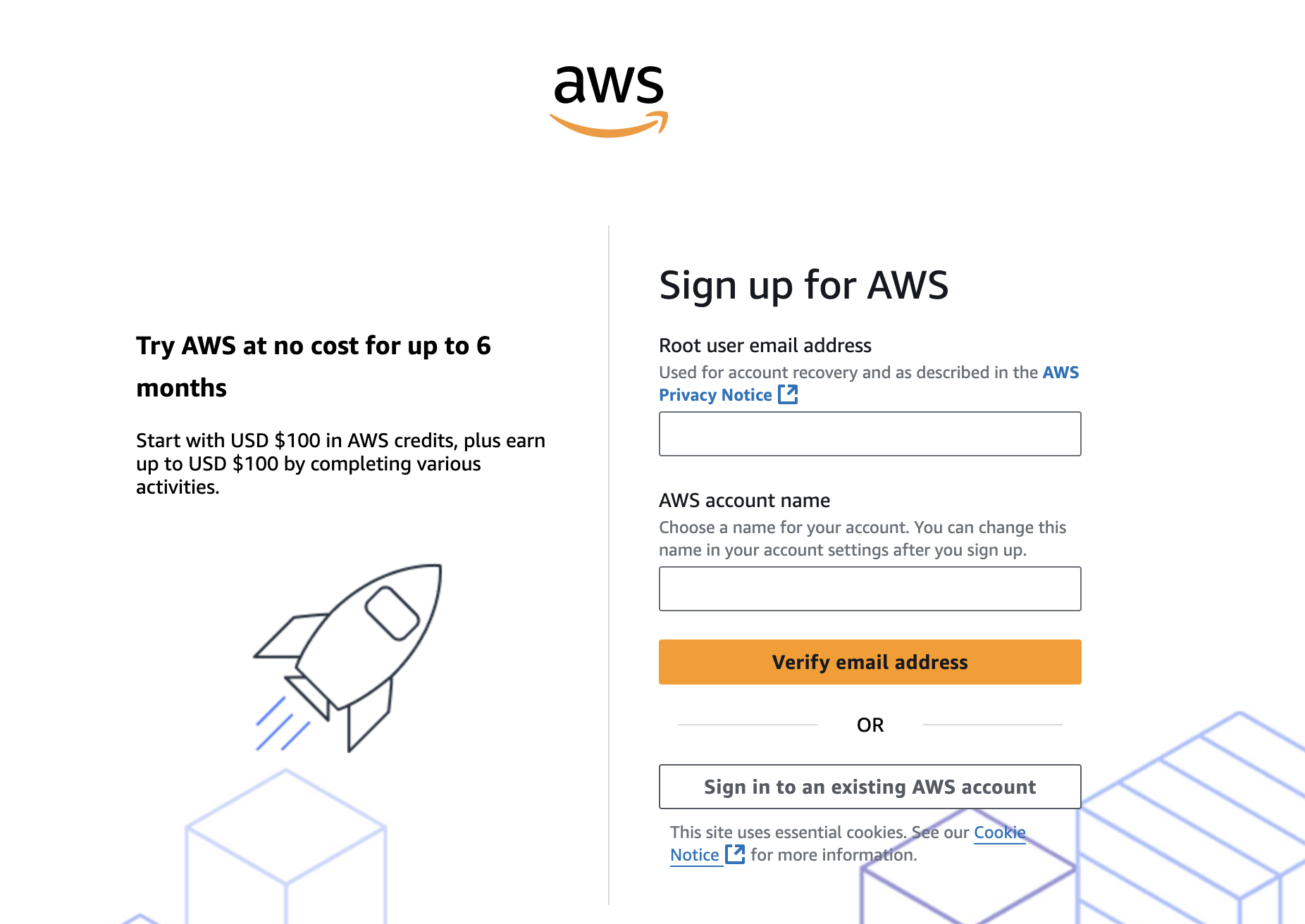
If you don't already have an AWS account, start by creating one using the AWS account creation flow. If you already have an account skip to the next step.
Step 2: Creating an AWS IAM User for Defang
To deploy applications with Defang on AWS, you need an IAM user with appropriate permissions and access keys. This guide walks you through the process step by step.
a. Open the IAM Service
Go to the IAM Users Panel.
b. Click Create User
Click the Create user button at the top right.
c. User details
Enter a user name, and assign permissions. The name can be anything you choose, but if you aren't sure, feel free to use the name defang. Defang requires the AdministratorAccess policy in order to deploy and manage resources in your account.
d. Review and Confirm
Review your settings and confirm the creation of the user.
Step 3: Create Access Keys
Access keys are the easiest way to authorize programmatic access to AWS. Follow these steps to create them:
a. Select the New User
After creating the user, locate them in the IAM Users Panel and select the user.
b. Create Access Key
In the User Summary panel, click Create access key.
c. Select Use Case
For Defang, select the use case "Application running on AWS compute service".
d. Add Description and Continue
Optionally, provide a description for the key and click Next.
e. Save Your Access Keys
Your new access key will be generated. Copy and save the Access Key ID and Secret Access Key—you will need these for Defang deployments.
Step 4: Set up Your AWS CLI (Optional but Recommended)
You don’t need to set up the AWS CLI to use Defang, but having it installed can be helpful for creating an AWS profile for Defang. An AWS profile lets you store your credentials securely on your machine.
a. Install the AWS CLI
Follow the instructions in the AWS CLI User Guide to install the AWS CLI on your machine.
b. Configure the AWS CLI
Run the following command to configure the AWS CLI with your new IAM user's access keys:
When picking a profile name, choose something descriptive like defang.
aws configure --profile <your-profile-name>
For example I will create a AWS profile named defang:
You will be prompted to enter your Access Key ID, Secret Access Key, default region, and output format.
You can provide the credentials you set up earlier or use another preferred credential set. Choose a default region where you’d like to host the application. The output format can be left as the default by pressing Enter, or you can specify a different format if you prefer.
Now you have a AWS Profile which you can use with Defang.
You are now ready to deploy! See the Deploy to AWS tutorial for next steps.